SKU: Any Atlona Product
Subject: How to set a Windows PC to a static IP address (for IP communication with Atlona devices)
- Open Network Sharing Center by right clicking on the network icon found in the bottom left corner of the start menu

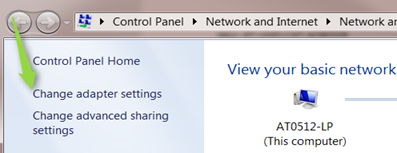
- Click on “Change Adapter Settings”
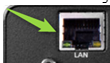
- Connect a straight through CAT cable from a computer LAN port to the LAN port on the Atlona device:
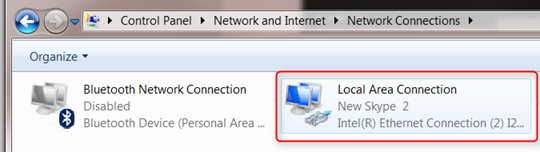
- Click on the LAN connection
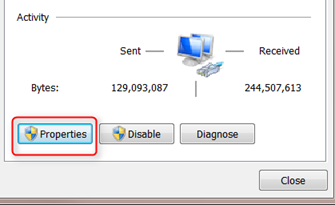
- Click “Properties”
- Double click on IPV4
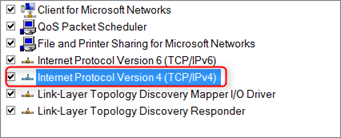
- Enter the following IP address and Subnet Mask followed by clicking “ok” (sets computer to this IP address)
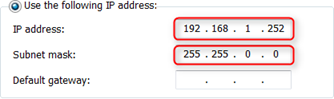
Click OK to save

- Enter the Static IP of the Atlona device (refer to the users manual or specific help center article for setting your device to static IP) and press “ENTER”

- Login Credentials are: Username = root Password: Atlona (case sensitive)
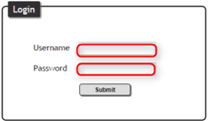
This completes the process of setting your Atlona device to a static IP address and accessing its web interface.
Article ID: KB01239